
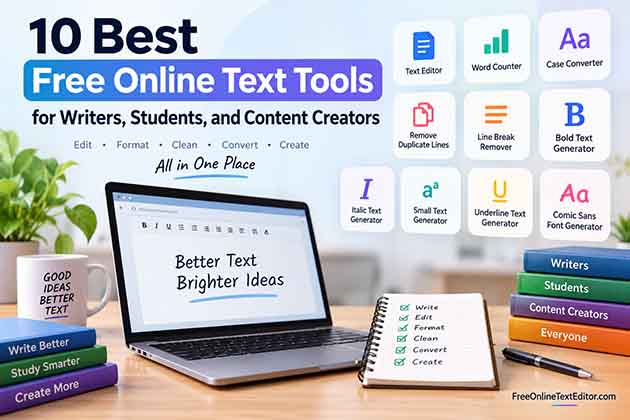
Writing and editing text does not always require expensive software. Whether you are preparing an assignment, writing a blog post, cleaning copied text, creating a social media caption, or simply checking your word count, the right free online text tools can make the job much easier.
Free Online Text Editor provides browser-based tools designed for quick everyday text tasks. You can edit, format, clean, convert, and style text without downloading additional software.
Below are 10 useful online text tools for writers, students, bloggers, marketers, and content creators.
- Edit and format text directly in your browser.
- Count words and characters instantly.
- Convert uppercase, lowercase, title case, and more.
- Remove duplicate lines and unwanted line breaks.
- Generate bold, italic, small, and decorative text.
- Use the tools without installing desktop software.
You can also browse the complete collection of free online text tools.
1. Free Online Text Editor
A good online text editor can handle many everyday writing tasks without requiring Microsoft Word or another desktop application.
The Free Online Text Editor lets you write and work with text directly from your browser. It is useful when you need a quick space for drafting, editing, or formatting content.
Writers can use it for article drafts, students can prepare notes, and marketers can work on captions or website copy without opening a separate writing program.
When is an online text editor useful?
An online editor can be helpful when you need to:
- Draft an article or paragraph.
- Edit copied text.
- Prepare notes.
- Format content.
- Create website copy.
- Work from a device without your usual writing software.
For quick text-based tasks, opening a browser tool can often be more convenient than launching a full desktop application.
2. Word Counter
Word limits matter in many types of writing.
Students may have assignment requirements, bloggers may be working toward a target article length, and marketers often need concise copy for advertisements or social posts.
A Word Counter makes it easy to check the length of your content without manually counting anything.
Paste or type your content into the tool and you can quickly review its text statistics.
Who can use a word counter?
It is particularly useful for:
- Students
- Bloggers
- Freelance writers
- Copywriters
- SEO professionals
- Social media managers
- Editors
For example, if an article needs to be approximately 1,500 words, a word counter lets you monitor its length while editing.
3. Text Case Converter
Receiving text in the wrong capitalization can be frustrating.
You might receive an entire sentence like:
THIS IS AN EXAMPLE OF UPPERCASE TEXT
but need:
This is an example of sentence case text.
Instead of rewriting everything manually, use the Text Case Converter.
A case converter can quickly transform text into formats such as uppercase, lowercase, title case, or sentence case.
Common uses for a case converter
It can help when preparing:
- Blog titles
- Headings
- Product names
- Email subject lines
- Social media posts
- Lists
- Website content
For large blocks of text, automatic case conversion can save considerable editing time.
4. Remove Duplicate Lines
Duplicate lines commonly appear when working with keyword lists, email exports, spreadsheets, copied data, or research notes.
For example:
content marketing
SEO tools
content marketing
text editor
SEO tools
The list contains repeated entries.
The Remove Duplicate Lines tool can clean the list by removing repeated lines.
The result becomes:
content marketing
SEO tools
text editor
This is particularly useful for SEO professionals, researchers, marketers, and anyone working with large text-based lists.
5. Line Break Remover
Text copied from PDFs, emails, websites, or other documents sometimes contains unwanted line breaks.
A paragraph that should flow normally may appear like this:
This is a paragraph
that contains unnecessary
line breaks throughout
the content.
Fixing dozens or hundreds of these breaks manually can take time.
The Line Break Remover helps turn unnecessarily broken text into cleaner paragraphs.
This can be useful when working with:
- PDF content
- Research notes
- Email text
- AI-generated drafts
- Website content
- Imported documents
After removing unwanted breaks, the text is easier to edit and reuse.
6. Bold Text Generator
Sometimes plain text does not stand out enough, especially on platforms where traditional formatting options are limited.
The Bold Text Generator converts regular characters into bold-looking Unicode styles that can be copied and pasted into many supported platforms.
For example:
Normal:
Digital Marketing
Generated style:
𝐃𝐢𝐠𝐢𝐭𝐚𝐥 𝐌𝐚𝐫𝐤𝐞𝐭𝐢𝐧𝐠
Bold text can be useful for short headings, profile text, captions, or important words.
However, decorative Unicode should be used selectively. For normal articles and important website content, standard HTML formatting is usually more appropriate.
7. Italic Text Generator
Italic styling is another simple way to create visual emphasis.
With the Italic Text Generator, you can enter ordinary text and generate italic-looking Unicode characters that are easy to copy.
For example:
Normal:
Creative Writing
Generated:
𝐶𝑟𝑒𝑎𝑡𝑖𝑣𝑒 𝑊𝑟𝑖𝑡𝑖𝑛𝑔
This can be useful for short captions, profile descriptions, quotes, and other creative text where supported.
8. Small Text Generator
Small text can create a distinctive appearance for short pieces of content.
The Small Text Generator transforms regular text into smaller Unicode-style characters.
It can be useful for:
- Usernames
- Bios
- Captions
- Decorative text
- Short notes
- Creative social posts
Because these characters are Unicode rather than an actual installed font, their appearance can vary somewhat between devices, browsers, and platforms.
9. Underline Text Generator
Underlining can help a short phrase or word stand out.
The Underline Text Generator provides a quick way to generate underlined text that can be copied for use on supported platforms.
It can be useful for short:
- Announcements
- Captions
- Headlines
- Profile text
- Messages
As with other Unicode-based text styles, it is best used for decorative purposes rather than replacing proper HTML formatting on a website.
10. Comic Sans Font Generator
For something more playful, try the Comic Sans Font Generator.
The tool creates multiple Comic Sans-inspired and decorative text variations from the text you enter. You can preview the available styles and copy the one you prefer.
It can be useful for:
- Fun messages
- Social media captions
- Profile text
- Creative headings
- Casual posts
- Decorative text
Because many generated styles rely on Unicode characters rather than changing the actual font installed on a device, users can copy and paste the output instead of downloading a font file.
Which Free Online Text Tool Should You Use?
The best tool depends on what you need to accomplish.
| Task | Recommended Tool |
|---|---|
| Write or edit text | Free Online Text Editor |
| Check content length | Word Counter |
| Change capitalization | Text Case Converter |
| Delete repeated lines | Remove Duplicate Lines |
| Fix unwanted line breaks | Line Break Remover |
| Create bold-looking text | Bold Text Generator |
| Create italic-looking text | Italic Text Generator |
| Generate small text | Small Text Generator |
| Generate underlined text | Underline Text Generator |
| Create playful text styles | Comic Sans Font Generator |
You do not necessarily need just one tool. A simple writing workflow can involve several of them.
For example, you might draft content in the editor, check its length with the Word Counter, correct capitalization with the Text Case Converter, and clean unwanted formatting before publishing.
Why Use Browser-Based Text Tools?
One of the biggest advantages of browser-based text tools is convenience.
There is usually no need to download and install a large application just to perform a small task such as counting words or removing duplicate lines.
Fast access
Open the required tool in your browser and start working.
No additional installation
These tools can perform their intended tasks without requiring desktop software installation.
Useful for small tasks
A dedicated tool can be faster when you only need to perform one operation, such as changing capitalization or cleaning a list.
Accessible from different devices
Browser-based tools can generally be opened from desktops, laptops, tablets, and compatible mobile browsers.
Multiple tools in one place
Instead of searching for a different website every time you need to perform a text task, you can visit the Free Online Text Tools directory and choose the tool you need.
A Simple Text Editing Workflow
Suppose you are preparing a new blog article.
Start by drafting and organizing your content in the online editor.
Next, use the Word Counter to check whether the article meets your desired length.
If some headings or titles have inconsistent capitalization, run them through the Text Case Converter.
Copied research may contain repeated entries or awkward line breaks. The Remove Duplicate Lines and Line Break Remover tools can help clean those sections.
For social media promotion, you can then use tools such as the Bold Text Generator or Italic Text Generator to create decorative versions of short promotional text.
Using specialized tools for individual tasks can make the overall editing process quicker and more organized.
Free Online Text Tools for Students
Students regularly work with essays, assignments, notes, presentations, and research.
A Word Counter can help track assignment length, while a Text Case Converter can quickly correct headings or titles.
Text-cleaning tools can also be useful when collecting information from different sources and organizing personal research notes.
The key is to use these tools as productivity aids while still reviewing the final work yourself.
Free Online Text Tools for Writers and Bloggers
Writers often spend as much time editing as they do drafting.
Small repetitive tasks can interrupt that workflow. Changing capitalization manually, deleting duplicate list entries, or fixing broken paragraphs may only take a few minutes individually, but those minutes add up.
Using dedicated online text tools can reduce repetitive work and leave more time for improving clarity, structure, and the actual message of the content.
Free Online Text Tools for Content Creators
Content creators frequently need text for several platforms.
A single idea may become a blog title, social caption, profile description, short promotional message, or video description.
Text generators can provide decorative variations, while editing and cleaning tools help prepare the underlying copy.
The result is a simple toolkit for handling different types of text without switching between multiple desktop applications.
Want to understand common texting abbreviations too? Learn what STG means in text and see how it is used in everyday conversations.
Frequently Asked Questions
What are free online text tools?
Free online text tools are browser-based utilities that help users edit, format, clean, analyze, convert, or generate text without requiring traditional desktop software for those individual tasks.
Do I need to install software to use these tools?
No. The tools covered in this guide are designed to work through a web browser, so you do not need to install separate desktop software to perform these tasks.
Which tool can count words in my writing?
Use the Word Counter when you want to check the number of words and other available text statistics.
Can I remove duplicate lines automatically?
Yes. The Remove Duplicate Lines tool is designed to identify repeated lines and remove duplicates from a text list.
How can I change uppercase text to lowercase?
Use the Text Case Converter. Paste your text into the tool and select the capitalization format you need.
Can I generate stylish text online?
Yes. Tools such as the Bold Text Generator, Italic Text Generator, Small Text Generator, Underline Text Generator, Text Font Changer, and Comic Sans Font Generator can create different text styles.
Are generated fonts actual font files?
Not necessarily. Many online font-style generators use Unicode characters that resemble different styles. This makes the resulting text copyable without requiring users to install a font.
Make Everyday Text Tasks Easier
You do not need complicated software for every writing or formatting task.
From counting words and changing capitalization to removing duplicate lines and generating creative text styles, free online text tools can handle many repetitive jobs directly in your browser.
Explore all the Free Online Text Tools and choose the tool that matches your next task.