
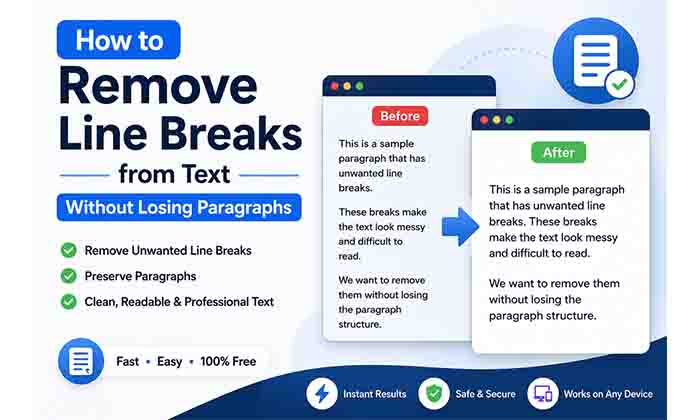
Many people copy text from PDF files, emails, websites, AI tools, or scanned documents only to discover that every sentence appears on a new line. Instead of clean paragraphs, the text becomes cluttered with unnecessary line breaks, making it difficult to edit, publish, or share.
While manually deleting hundreds of line breaks might work for a few sentences, it quickly becomes frustrating when dealing with long articles, reports, research papers, or AI-generated content. The good news is that you don’t have to spend time fixing formatting by hand.
In this guide, you’ll learn how to remove line breaks from text without losing important paragraph spacing. We’ll explain why unwanted line breaks appear, when they should be removed, when they should be preserved, and the fastest way to clean your text while keeping it readable.
Whether you’re a student, writer, blogger, developer, marketer, or simply working with copied text, this guide will help you format your content correctly in just a few clicks.
What Are Line Breaks?
A line break is a formatting character that moves text onto the next line. Writers intentionally use line breaks to improve readability, separate ideas, create lists, or format poems and code.
For example:
Correct formatting
Artificial intelligence is changing the way people work.

Businesses are adopting AI tools to improve productivity.
In this example, the blank line separates two different paragraphs, making the content easier to read.
However, not every line break is intentional.
When text is copied from PDFs, scanned documents, emails, websites, or AI-generated content, extra line breaks often appear where they aren’t needed. Instead of forming complete paragraphs, every sentence—or even every few words—moves to a new line.
For example:
Before cleaning
Artificial intelligence is changing
the way people work and create
content online.

Businesses are now using
AI tools every day.
After removing unnecessary line breaks
Artificial intelligence is changing the way people work and create content online.

Businesses are now using AI tools every day.
Notice how the paragraph spacing remains intact while the unnecessary line breaks disappear.
This is exactly what a Line Break Remover is designed to do.
Why Do Unwanted Line Breaks Appear?
There are several reasons why copied text contains unwanted line breaks.
Copying Text from PDF Files
PDF documents are designed for printing and fixed layouts rather than editing. When you copy text from a PDF, every wrapped line often becomes an actual line break.
This is one of the most common reasons people search for a line break remover.
OCR (Optical Character Recognition)
OCR software converts scanned images into editable text. While modern OCR tools are much more accurate than before, they frequently preserve line breaks from the original page layout.
As a result, sentences become fragmented instead of flowing naturally as paragraphs.
AI-Generated Content
Content created by AI assistants may sometimes lose its formatting when copied between different applications. Depending on where the text is pasted, unexpected line breaks or spacing issues can appear.
Cleaning the formatting before publishing helps improve readability and creates a more professional-looking document.
Emails
Many email applications automatically wrap long lines based on the width of the message window. After copying an email into another editor, these wrapped lines often remain separated even though they belong to the same paragraph.
Websites
Copying text from websites can also introduce formatting issues. Depending on the site’s layout, advertisements, responsive columns, or hidden formatting may insert additional line breaks into the copied text.
Word Processing Documents
Although Microsoft Word and Google Docs generally preserve formatting well, copying content into other applications or content management systems can occasionally create unwanted line breaks or inconsistent spacing.
When Should You Remove Line Breaks?
Removing line breaks is helpful whenever your text has been split into multiple short lines even though it should read as continuous paragraphs.
Common situations include:
- Cleaning text copied from PDF documents
- Editing AI-generated articles before publishing
- Preparing blog posts for WordPress
- Formatting website content
- Combining spreadsheet data into readable text
- Cleaning OCR output from scanned books or documents
- Formatting email content
- Preparing reports and research papers
- Fixing copied text before translation
- Improving readability before sharing content online
Instead of manually deleting hundreds of line breaks, an online Line Break Remover can complete the entire process instantly while preserving your original content.
When Should You Keep Paragraphs?
Not every line break should be removed.
Paragraphs play an important role in organizing ideas and improving readability. If every paragraph is merged into one long block of text, readers may find the content difficult to follow.
A good Line Break Remover understands the difference between:
- Single line breaks inside a paragraph
- Intentional paragraph breaks between ideas
The best approach is to remove only the unnecessary line breaks while preserving meaningful paragraph spacing.
This allows your document to remain clean, organized, and easy to read.
How to Remove Line Breaks Without Losing Paragraphs
Removing unwanted line breaks doesn’t have to be complicated. The key is to preserve the natural paragraph structure while eliminating unnecessary breaks inside each paragraph.
Follow these simple steps to clean your text efficiently.
Step 1: Copy the Original Text
Start by copying the text from its original source. This could be a:
- PDF document
- Microsoft Word file
- Google Docs document
- Website
- AI-generated response
- OCR-scanned document
- Spreadsheet
- eBook
Don’t worry if the formatting looks messy after copying. That’s exactly what you’ll fix in the next step.
Step 2: Paste the Text into a Line Break Remover
Open a reliable online Line Break Remover and paste your copied content into the input box.
Unlike manual editing, an online tool can process hundreds or even thousands of lines in just a few seconds.
This saves time and reduces the chance of accidentally deleting important content.
Step 3: Choose the Right Processing Mode
Not every document requires the same type of formatting. Most modern Line Break Removers offer several processing options.
Replace Line Breaks with Spaces
This option joins all broken lines into a continuous paragraph.
It’s ideal for:
- PDF text
- OCR output
- Research papers
- Articles
- Reports
Preserve Paragraphs
This is the option most people should choose.
Instead of removing every line break, it:
- Joins broken lines inside each paragraph
- Keeps blank lines between paragraphs
- Maintains readability
- Produces natural-looking text
This mode is perfect for blog posts, essays, documentation, and AI-generated content.
Remove Line Breaks Completely
Some projects require text without any spaces between lines.
This option removes every newline character completely.
It’s commonly used for:
- Programming
- Data processing
- Special formatting tasks
Replace Line Breaks with a Custom Separator
Sometimes you don’t want spaces—you want commas, pipes, semicolons, or another separator.
For example:
Original text:
Apple
Banana
Orange
Using a comma separator becomes:
Apple, Banana, Orange
This feature is especially useful when preparing data for spreadsheets or databases.
Step 4: Review the Output
Before copying the cleaned text, take a few seconds to review the result.
Check that:
- Paragraphs remain separated.
- Sentences flow naturally.
- Extra blank lines are removed.
- Words haven’t merged together.
- Spacing looks consistent.
Spending a few seconds reviewing the output can prevent formatting issues later.
If you need to make additional changes after cleaning your text, you can use our HTML Text Editor to edit, preview, and format HTML code directly in your browser.
Step 5: Copy or Download the Cleaned Text
Once you’re satisfied with the result, either:
- Copy the cleaned text directly to your clipboard, or
- Download it as a plain text (.txt) file for future use.
You can then paste the cleaned content into WordPress, Google Docs, Microsoft Word, emails, or any other application.
Different Ways to Remove Line Breaks
There isn’t just one way to remove line breaks. The best method depends on the type of document you’re working with.
Manual Editing
The traditional approach is to manually delete every unwanted line break.
While this works for short paragraphs, it’s extremely slow for large documents.
Pros:
- No additional tools required
Cons:
- Time-consuming
- Easy to make mistakes
- Not practical for long documents
Using Find and Replace
Applications like Microsoft Word and Notepad++ allow you to replace line breaks using Find and Replace.
This method works well if you’re familiar with text editing tools.
However, beginners often find it confusing because newline characters differ between operating systems.
Using an Online Line Break Remover
For most users, an online Line Break Remover is the fastest and easiest solution.
Benefits include:
- No installation required
- Works directly in your browser
- Processes large documents instantly
- Preserves paragraphs
- Removes blank lines
- Cleans extra spaces
- Works on desktop and mobile devices
This is the preferred option for writers, students, bloggers, marketers, developers, and anyone working with copied text.
Why an Online Line Break Remover Is the Best Choice
Modern online text tools have several advantages over traditional editing methods.
Faster Processing
Instead of manually editing hundreds of lines, the tool completes the task in seconds.
Better Accuracy
A good Line Break Remover distinguishes between:
- Unwanted line breaks
- Paragraph breaks
- Blank lines
This helps preserve the original structure of your content.
Works Anywhere
Because the tool runs in your browser, you can use it on:
- Windows
- macOS
- Linux
- Android
- iPhone
- iPad
- Chromebook
There’s nothing to install or update.
Improves Productivity
Whether you’re cleaning one paragraph or an entire report, automating repetitive formatting tasks allows you to focus on writing instead of editing.
Cleaning Text Copied from PDF Files
One of the most common uses for a Line Break Remover is cleaning text copied from PDF documents.
PDFs often wrap text based on page width, so copying them into another application introduces unwanted line breaks.
Instead of this:
This guide explains
how to clean copied
text quickly.
You get:
This guide explains how to clean copied text quickly.while keeping separate paragraphs intact.
This makes the content much easier to edit and publish.
Cleaning AI-Generated Content
AI writing assistants have become part of many content creation workflows.
Whether you’re using ChatGPT, Gemini, Claude, or another AI assistant, formatting may change when copying responses between applications.
Before publishing AI-generated content, it’s a good idea to:
- Remove unnecessary line breaks.
- Delete extra blank lines.
- Normalize spacing.
- Review paragraph structure.
- Check readability.
A clean document is easier to edit, easier to read, and looks more professional.
Common Mistakes to Avoid
Removing line breaks is simple, but a few common mistakes can negatively affect the readability and structure of your content. Avoiding these issues will help you produce cleaner, more professional-looking text.
Removing Every Line Break
One of the biggest mistakes is deleting every line break without considering paragraph structure.
Paragraphs separate ideas and make content easier to scan. If all line breaks are removed, your document can turn into one long block of text that’s difficult to read.
Whenever possible, use a Preserve Paragraphs option instead of removing all line breaks.
Ignoring Extra Spaces
After removing line breaks, you may notice multiple spaces between words or sentences.
Cleaning these extra spaces creates a more polished and consistent document.
Many modern Line Break Removers include an option to automatically remove unnecessary spaces.
Not Reviewing the Final Output
Even though text-cleaning tools are highly accurate, it’s always worth spending a few moments reviewing the processed result.
Check that:
- Paragraphs still make sense.
- Headings remain separate.
- Lists haven’t been merged together.
- Important formatting hasn’t been removed.
A quick review can prevent formatting issues before publishing.
Using the Wrong Processing Mode
Different types of documents require different formatting.
For example:
- Articles and blog posts usually benefit from preserving paragraphs.
- Lists may need a custom separator such as commas or pipes.
- Data processing might require removing all line breaks completely.
Choosing the correct mode saves time and produces better results.
Best Practices for Clean Text Formatting
Whether you’re preparing content for a blog, website, report, or email, these best practices can improve readability.
Preserve Natural Paragraphs
Readers prefer short paragraphs instead of large walls of text.
Keeping paragraph spacing intact makes your content easier to understand.
Remove Unnecessary Blank Lines
Too many blank lines create inconsistent formatting.
Removing extra empty lines results in cleaner, more professional content.
Keep Consistent Spacing
After cleaning line breaks, ensure that:
- Words are separated by a single space.
- Paragraph spacing remains consistent.
- Lists maintain proper formatting.
Consistency improves readability and makes editing easier.
Review Before Publishing
Always preview your content before publishing it.
This is especially important for:
- WordPress articles
- Email newsletters
- Research papers
- Business reports
- AI-generated content
A final review ensures that your formatting looks exactly as intended.
After cleaning your content, you can make headings or social media captions stand out using our Bold Text Generator, which creates stylish Unicode bold text for supported platforms.
Who Can Benefit from a Line Break Remover?
A Line Break Remover isn’t just for writers. Many professionals use text-cleaning tools every day.
Common users include:
- Bloggers and content creators
- SEO specialists
- Digital marketers
- Students and researchers
- Journalists
- Developers
- Business professionals
- Teachers
- Editors and proofreaders
- Anyone copying text from PDFs or websites
If you regularly work with copied text, a Line Break Remover can save hours of manual editing over time.
If you want to emphasize quotes, titles, or important phrases, try our Italic Text Generator to instantly create copyable italic Unicode text.
Frequently Asked Questions
Is a Line Break Remover free to use?
Yes. Most online Line Break Removers, including browser-based tools, are free to use without registration or software installation.
Will removing line breaks delete my content?
No. The tool only changes formatting. Your words remain the same unless you intentionally choose a different processing option.
Can I keep my paragraphs while removing line breaks?
Yes. This is one of the most useful features of a modern Line Break Remover. It joins broken lines while preserving meaningful paragraph spacing.
Does it work with PDF text?
Absolutely.
One of the most common uses for a Line Break Remover is cleaning text copied from PDF documents.
Can I use it on my phone?
Yes.
Most browser-based Line Break Removers work on desktops, laptops, tablets, Android devices, and iPhones without requiring any installation.
Is my text uploaded to a server?
Many online text tools process text directly in your browser, meaning your content stays on your device. However, always check the privacy policy of the specific tool you’re using if you’re working with sensitive information.
For additional text styling, our Underline Text Generator lets you generate copyable underlined Unicode text that works across many websites and apps.
Final Thoughts
Unwanted line breaks can make even well-written content look messy and difficult to read. Whether the text comes from a PDF, an email, a scanned document, a website, or an AI writing assistant, cleaning the formatting before publishing helps create a more professional result.
Instead of spending time manually deleting line breaks one by one, using a Line Break Remover allows you to clean your text in seconds while preserving important paragraph spacing. Features such as removing blank lines, trimming extra spaces, and replacing line breaks with custom separators make the editing process even more efficient.
If you regularly work with copied text, adding a reliable Line Break Remover to your workflow can save time, improve readability, and help you prepare content for blogs, websites, reports, emails, and documents with minimal effort.
Before publishing, always take a moment to review the cleaned text to ensure paragraphs, headings, and lists appear exactly as intended. A few seconds of checking can make a significant difference in the overall quality of your content.